FAQs


Collapsible content
Holiday Notice & Shipping Update: (Sept.30th- October 5th)
Our team will be on holiday from September 30 to October 5.
During this period, email and customer support responses may be delayed. Normal customer service will resume after the holiday, and we will respond to your messages as soon as possible.
Orders can still be placed normally during the holiday. Our team will continue arranging order processing and shipping, although some orders may experience slight delays due to the holiday schedule.
Thank you for your understanding and patience.
1. Shipping Update
Orders can still be placed during the holiday period. We will continue to arrange order processing and shipping, with some orders being processed gradually after the holiday.
Please note that several products are currently experiencing temporary stock shortages, which may result in additional shipping delays.
The estimated shipping time for the following products is approximately 1–2 weeks:
- TD-G19 (EU Version)
- TD-G18 (EU Version)
- TD-H3 SE
- TD-638
- TD-M2 Pro (EU Version)
We sincerely apologize for any inconvenience caused by these delays. Our team is actively coordinating inventory and shipments to arrange delivery as soon as possible.
Thank you for your patience and continued support of TIDRADIO.
2. TD-638 Pre-Order Shipping Update
The TD-638 is currently available as a pre-order. Our team is actively coordinating production and final preparations to ensure the product meets our performance and quality standards before shipment.
Based on the current production progress, TD-638 pre-orders are expected to begin shipping before the end of October.
To ensure a fair and orderly shipping process, orders will be arranged in the order they were placed. Customers from the first and second purchase batches will be prioritized according to their order time.
We sincerely appreciate your patience and understanding. Our team is working closely with the production and shipping teams to prepare the TD-638 and deliver a reliable product experience as soon as possible.
Where can I find operation tutorials and technical guidance?
If you encounter any technical issues or have questions about product operation and settings, you can visit our official TIDRADIO YouTube channel.
We provide detailed tutorial videos covering product setup, operation instructions, and common usage questions to help you get started and solve issues more easily.
You can visit our official YouTube channel here:
https://www.youtube.com/@tidradio/featured
If you still need further assistance after checking the tutorials, please feel free to contact us with your order number and a description of the issue, and our support team will be happy to help.
Q&A about Radio
Q1: How to Pair the BL-2 Bluetooth Accessories (Q2L / PTT / Earphones)?
A1: Please follow the steps below:
Long press the power button on BL-2 to turn it on
Turn on the Q2L microphone (or PTT / earphones)
On BL-2, long press the “–” key to clear previously paired devices
Then long press the “+” key to search for devices and connect automatically
BL-2 will usually pair with Bluetooth accessories automatically.
Video tutorial: https://www.youtube.com/shorts/MFEwEH1wy9Y
Q2:Firmware updates for simulators and POC models
A2: You can download the latest simulator firmware from our website: https://tidradio.com/pages/tidradio-firmware For POC models, please reach out to our customer service and we’ll provide you with the latest firmware.
Q3: How to switch the version of the walkie-talkie: Ham/GMRS/Unlocked (Normal)?
A3: Power on the device while holding the PTT and * buttons to enter the version switch menu.
Q4: Why won’t the radio charge?
A4: Please make sure the charger is connected to the bottom Type-C port, not the side charging port.
Q5: Why can’t the H9 radio get altitude from GPS?
A5: The H9 GPS can usually get altitude only in open outdoor environments. It generally cannot get altitude indoors.
Q6: Is the H9 radio compatible with Chirp?
A6: The H9 is currently not compatible with Chirp. We are actively communicating with the relevant parties to improve compatibility.
Q7: How do I scan frequencies on the H9 radio? Why does it sometimes not work?
A7: Long press key 3 on the H9 to scan frequencies. Please note:
During scanning, voice signals cannot be received; only frequencies are searched.
Some menu functions require switches to be turned on before they can be used.
In the channel configuration menu, some settings can only be adjusted in channel mode.
Q8: Can the radio connect to multiple Bluetooth accessories at once?
A8: Currently, one radio can connect to only one Bluetooth accessory at a time.
Q9: I'm new and just got my license. Which radio model should I start with?
A9: The TIDRADIO H8 Radio/H3 Radio is a great choice for beginners because its accessories are widely available and programming instructions are easy to follow.
Q10: How can I extend the life of my radio's battery?
A10: Fully charge the battery, remove it from the radio, and store it in a dry place.
Q11: What should I do with my radio if I don't use it often?
A11: Make sure the battery is fully charged, remove it from the radio, and store both the radio and its accessories in a dry place.
Q12: How do I set the startup information on the H9?A12: Currently, the H9 does not allow spaces in the startup information. The programming software only supports entering letters and numbers. We are continuously working on improving this feature.
Q13: What should I be aware of when updating the radio using CPS software?A13: Before using the CPS software to update your radio, you must first update the radio to the latest firmware version, otherwise the software will not work properly.
Q14: The radio signal reception was poor A14:
PoC: Check if the area has network coverage
H9/H8/H3 series analog radios: Replace with another antenna or switch to the full frequency band
PoC radio screen displayed "Not registered."
Detailed Tutorial:
https://tidradio.com/blogs/news/how-to-fix-poc-radio-no-network-issue
1.QR code cannot be scanned
Please provide a photo of the device’s IMEI QR codes.
2.Already bound in ODMaster but still shows “Not Logged In”
Upgrade to the latest version of OD.
Unbind the device and bind it again.
Restart the device multiple times.
3.Issue persists after completing the above steps
Please provide your device version.
How to check POC radio version (online and offline):
https://youtu.be/jMVnGH3ZHpU
PoC radio screen displayed "Network failure"
1. Remove the SIM card and insert it into another slot to see if the issue is resolved.
2. Update APN settings according to your SIM type:
Green SIM Card: indosatgprs
Orange SIM Card: ctm-mobile
EU Blue SIM Card: data641003
New SIM Card (Green 2.0 / Orange 2.0 / Purple): globaldata
Follow the tutorial to change APN: https://www.youtube.com/watch?v=GjN4MgbHvXw
Restart the radio after updating APN.
3. If the issue continues after completing the steps above, please provide the SIM card number that shows the network error.
Unable to scan the QR code on the PoC radio screen
Please provide us with your model number and the number displayed below the QR code on the screen.
Firmware Update Timeout – Button Disabled
Firmware update shows timeout and update button is grayed out:
If you are experiencing issues with upgrading your firmware, please follow these steps carefully:
1.Connect the cable to your computer first.
2.Enter the radio’s upgrade mode.
3.Connect the cable to the radio.
Connecting the cable first and then entering upgrade mode may cause the update to fail.
Use the USB cable we provided or our branded CH340 cable. We recommend Windows 7 or later, as older versions may cause upgrade failures. Following these steps ensures a successful firmware update.
CPS cannot program frequencies
Frequency cannot be written using CPS software:
The programming software cannot directly write 200 channels. To do this, you must use ODMaster. Reading back these channels in the software may show empty entries, but this does not affect actual use.
1. If you enter frequencies in the radio’s VFO mode, configure Menu 52: 200TX.
2. Configure Menu 53: 350TX.
3. Configure Menu 54S: 500TX.
4. Enter the corresponding frequencies and enable TX for each channel. Frequencies will be saved but cannot be transmitted if TX is not enabled.
Shipping Time
Shipping Time:
US/EU: 5-9 working days
The package with a spare battery will be extended to 12-25 working days.
Why Am I Unable To Track My Order?
Tracking information will be updated 3 days after the package is shipped. If you still cannot view the tracking information after 3 days, please copy your tracking number to the following query website:
Missing Accessories in the Package
Please kindly check the bottom of the box and under the tray to ensure no items are left inside.During packaging, our factory team sometimes places accessories under the inner tray to make better use of space.
YouTube Video Tutorial
Click the link to our YouTube channel and find the tutorial you need by searching with keywords. https://www.youtube.com/@tidradio/videos

Still haven't found the answer?
Join our TIDRADIO WhatsApp community, which is active 24/7, where friendly group members may be able to help you.
-
TD-H9 10W APRS GPS Bluetooth Handheld Radio
Regular price From $69.99 USDRegular priceUnit price per$99.99 USDSale price From $69.99 USD -
TD-H3 Plus 5W Bluetooth Ham GMRS 8-Band Radio Handheld
Regular price From $29.99 USDRegular priceUnit price per$239.99 USDSale price From $29.99 USD -
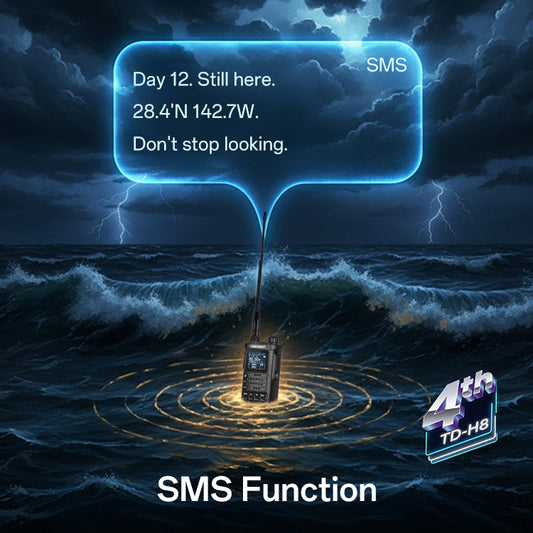
4th Gen TD-H8 10W Ham GMRS Radio with SMS,Spectrum, AM/FM, Type-C Upgrade/Program
Regular price From $59.99 USDRegular priceUnit price per$89.99 USDSale price From $59.99 USD -
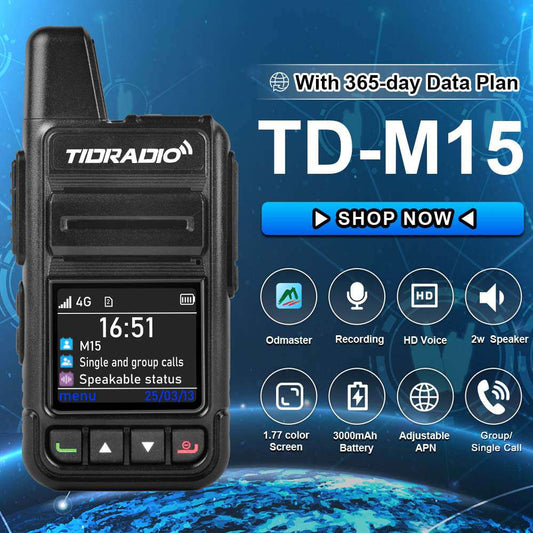
TD-M15 Global Walkie Talkie Long Range 4G Poc Radios with SIM Card
Regular price From $54.99 USDRegular priceUnit price per$76.99 USDSale price From $54.99 USD