So beheben Sie das Problem „Kein Netzwerk“ bei PoC-Radios
Überall verbunden bleiben mit PoC-Funkgeräten
Egal, ob Sie durch verschiedene Länder reisen, in verschiedenen Städten arbeiten, sich mit einem Team abstimmen oder mit Familie und Freunden in der Ferne in Kontakt bleiben – ein PoC-Funkgerät macht die Fernkommunikation einfach und zuverlässig.
Im Gegensatz zu herkömmlichen Walkie-Talkies, die in ihrer Reichweite begrenzt sind, nutzen PoC-Funkgeräte 4G/LTE-Netze, um die Kommunikation über Städte, Regionen und sogar Länder hinweg zu ermöglichen.
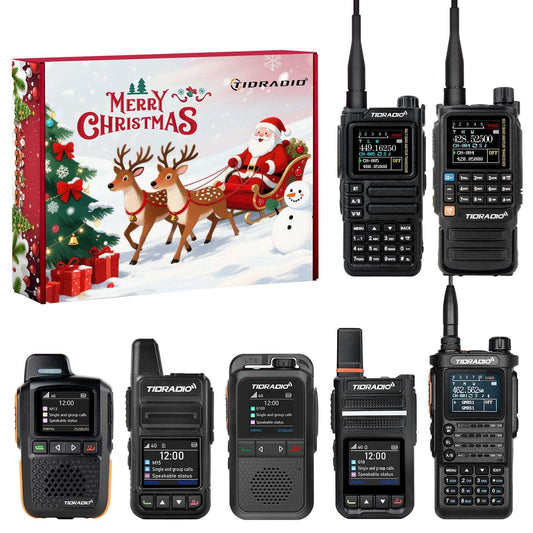
Geräte wie das TD- G18, TD- M15, TD- G100, und TD-M13 sind für Reisen, Geschäftskommunikation, Außenkoordination und das Bleiben in Verbindung unterwegs konzipiert.
Beim Wechsel von Ländern, Anbietern oder Netzwerkumgebungen können jedoch bei einigen Benutzern gelegentlich Probleme mit einem „Netzwerkfehler“ auftreten.
Die gute Nachricht ist, dass die meisten Netzwerkprobleme bei PoC-Funkgeräten in der Regel schnell behoben werden können, indem man die folgenden Schritte befolgt.
Schritt-für-Schritt-Fehlerbehebung
Schritt 1 — Das PoC-Funkgerät in ODMaster aktivieren
Bevor Sie mit der Fehlerbehebung beginnen, überprüfen Sie bitte:
- Die ODMaster App ist heruntergeladen
- Sie sind registriert und angemeldet
- Der QR-Code des Funkgeräts wurde gescannt und in ODMaster aktiviert
Falls nicht:
- Aktivieren Sie zuerst das Funkgerät
- Starten Sie danach das Gerät neu
Wenn die Aktivierung immer noch fehlschlägt, halten Sie bitte ein QR-Code-Foto zur Überprüfung bereit.
Schritt 2 — APN-Einstellungen (Wichtig)
Drücken Sie lange auf die grüne Menütaste, um die Seite APN-Wechsel aufzurufen.
Dann:
- Wählen Sie den korrekten APN basierend auf Ihrem SIM-Kartentyp
- Drücken Sie die grüne Menütaste, um die Einstellung zu bestätigen und zu speichern
APN-Liste
- Grüne SIM-Karte: indosatgprs
- Orange SIM-Karte: ctm-mobile
- EU SIM-Karte: data641003
- Neue globale SIM-Karte (Grün 2.0 / Orange 2.0): globaldata
⚠️ Für M2 Pro-Nutzer kann die APN-Änderungsmethode abweichen. Bitte wenden Sie sich bei Bedarf an unser Kundensupport-Team, um Unterstützung zu erhalten.
APN-Setup-Video-Tutorials: https://youtu.be/fiMixzp3_z4
https://youtu.be/P5wfe4uOaj0
Nach der Einrichtung:
- Starten Sie das Funkgerät neu
- Warten Sie einige Minuten, bis die Netzwerkregistrierung erfolgt ist
Falsche APN-Einstellungen sind eine der häufigsten Ursachen für Probleme mit „Kein Netzwerk“ bei PoC-Funkgeräten.
Schritt 3 — Serverauswahl
Drücken Sie lange auf die linke Pfeiltaste, um die Seite Serverwechsel aufzurufen.
Bitte stellen Sie sicher, dass der Server auf: odmaster eingestellt ist
Wenn ein anderer Server ausgewählt ist:
- Wechseln Sie zu odmaster
- Starten Sie anschließend das Funkgerät neu
Schritt 4 — Überprüfung der SIM-Karte
Wenn das Problem nach den vorherigen Schritten immer noch nicht behoben ist, senden Sie bitte die SIM-Kartennummer an das Kundensupport-Team, um weitere Unterstützung zu erhalten.
Dies hilft bei der Bestätigung von:
- SIM-Status
- Anbieterregistrierung
Schritt 5 — Firmware-Versionsprüfung
Halten Sie die rechte Pfeiltaste gedrückt, um die Oberfläche Benutzerversion aufzurufen.
Dann:
- Drücken Sie die rechte Pfeiltaste erneut
- Überprüfen Sie die Firmware-Version
- Machen Sie ein Foto und senden Sie es dem Support-Team zur Überprüfung
Die Firmware-Version ist ebenfalls ein Faktor, der die Netzwerkkonnektivität beeinflusst.
Warum viele Nutzer PoC-Funkgeräte wählen
Herkömmliche Funkgeräte sind durch Reichweite und Repeater-Abdeckung begrenzt.
PoC-Funkgeräte ermöglichen es Benutzern:
- Auf Reisen verbunden zu bleiben
- Über Städte und Länder hinweg zu kommunizieren
- Geschäftsteams aus der Ferne zu koordinieren
- Überall mit Familie und Freunden in Kontakt zu bleiben
Für viele Nutzer sind Geräte wie das TD-G18 und TD-M15 nicht nur Kommunikationsmittel – sie sind zuverlässige Begleiter für Reisen, Arbeit und den Alltag.
Letzte Tipps
Die meisten „Kein Netzwerk“-Probleme bei PoC-Funkgeräten hängen zusammen mit:
- APN-Konfiguration
- SIM-Registrierung
- Vorübergehend instabiles Signal
- Serverauswahl
In den meisten Fällen kann das Problem innerhalb weniger Minuten mit den oben genannten Schritten gelöst werden.
Zuverlässige Kommunikation beginnt mit einer stabilen Verbindung – wohin auch immer Ihre Reise Sie führt.
```